

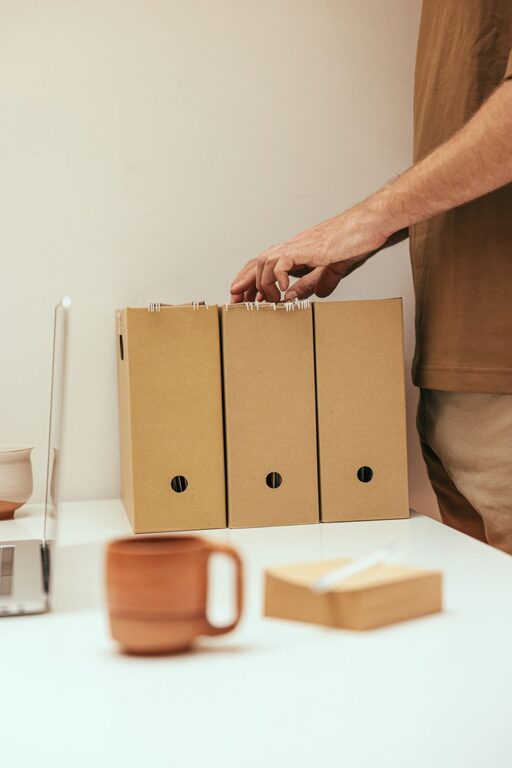
Keeping your computer files organized can save you time, reduce stress, and help you work more efficiently. Whether you use your computer for work, school, or personal projects, having a clear system for your files ensures you can find what you need quickly and avoid unnecessary clutter. In this post, we’ll share practical tips and strategies to help you organize your computer files effectively.
Why Organizing Files Matters
Before diving into specific tips, it’s important to understand the benefits of a well-organized computer:
– Saves time: Finding files quickly means less time searching and more time doing.
– Reduces stress: A cluttered desktop or folder can be overwhelming.
– Improves productivity: Clear organization helps you focus better on tasks.
– Prevents data loss: Regularly sorting and backing up files reduces the risk of losing important data.
1. Start with a Clean Slate
If your files have been accumulating unchecked, begin by decluttering:
– Delete unused files: Remove duplicates, outdated documents, or files you no longer need.
– Empty the recycle bin: Ensure deleted files are permanently removed to free up space.
– Back up important files: Before making major changes, back up critical documents to an external drive or cloud storage.
2. Create a Logical Folder Structure
A clear folder hierarchy is the foundation of effective file organization.
Tips for Folder Organization
– Use broad categories: Start with main folders like Work, Personal, Photos, or Finance.
– Use subfolders for details: Within main folders, create subfolders by project, date, or topic.
– Keep folder names descriptive: Use clear, meaningful names that make contents obvious.
Example folder tree:
“`
– Work
– Project A
– Reports
– Presentations
– Project B
– Personal
– Taxes
– Travel
– Photos
– 2024 Vacation
– Family
“`
3. Name Files Consistently
File names help you recognize content without opening the files.
Naming Best Practices
– Be descriptive: Include relevant details, like topic, date, or version.
– Use dates in a standard format: For example, YYYY-MM-DD, to keep files in chronological order.
– Avoid special characters: Use dashes or underscores instead of spaces or symbols.
– Keep it short but clear: Long names can be confusing, but avoid overly brief ones.
Example: `2024-06-01_ProjectA_Report_v2.docx`
4. Use Tags and Metadata (If Available)
Some operating systems, like macOS and certain versions of Windows, allow you to add tags or metadata to files. These can help you locate files across different folders.
– Apply consistent tags: Use tags like “Invoice,” “Draft,” or “Urgent” if your system supports it.
– Search by tags: This helps when files relate to multiple categories.
5. Regularly Sort and Review Files
Organizing isn’t a one-time task. Set aside time weekly or monthly to:
– Move files from your Downloads or Desktop folders to permanent locations.
– Delete files you no longer need.
– Rename files or folders if necessary.
– Back up new or updated files.
6. Use Cloud Storage and Syncing Wisely
Cloud services like Google Drive, Dropbox, or OneDrive can help keep files accessible and backed up.
– Mirror your folder structure online: Organize cloud storage similarly to your computer.
– Avoid duplicates: Be careful not to save the same file in multiple locations unnecessarily.
– Use sharing features carefully: Share folder access rather than sending multiple copies.
7. Utilize File Management Tools
There are many tools and utilities that can automate or assist with file organization.
– Duplicate file finders: Help locate and remove duplicate files.
– Automatic backup software: Schedule regular backups to avoid data loss.
– File renaming tools: Batch rename files for consistency.
8. Keep Your Desktop Minimal
A cluttered desktop slows you down and creates unnecessary clutter.
– Use desktop only for temporary files: Files you’re actively working on can stay there, but don’t let them accumulate.
– Create shortcuts or aliases: Instead of saving files on the desktop, create shortcuts to folders or files.
– Regularly clean up your desktop: Move items to appropriate folders at the end of the day or week.
9. Organize Emails and Downloads
Often, files accumulate in email attachments and downloads folder.
– Download with intention: Save important attachments directly to organized folders rather than leaving them in downloads.
– Clear downloads regularly: Delete or move files you no longer need.
– Use email folders or labels: Organize emails so important attachments don’t get lost.
10. Backup Your Organized Files
A good organizational system also includes protecting your files.
– Use an external hard drive or cloud backup service.
– Schedule automatic backups when possible.
– Keep backups updated after major changes or new files.
—
By implementing these simple yet effective tips, you can transform your computer from a cluttered mess into a well-organized workspace. This will save you time, reduce frustration, and help keep your digital life under control. Remember, the key is consistency—make organizing a regular habit to maintain order year-round.